
What Is a Passkey on a Phone
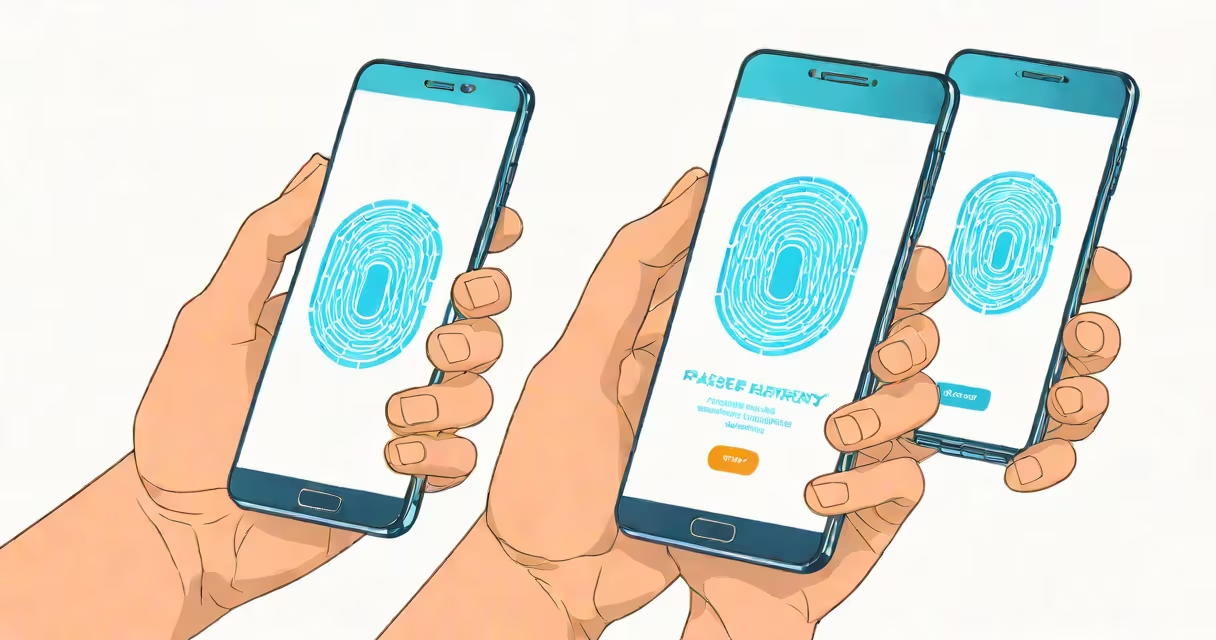
A passkey on a phone is a secure, passwordless authentication method that uses your device's biometrics-like a fingerprint or face scan-or a device PIN to verify identity. It replaces traditional passwords with cryptographic keys stored only on your device, making it resistant to phishing and remote hacking.
Passkeys are part of the FIDO2 and WebAuthn standards developed by the FIDO Alliance and W3C. These standards ensure that authentication happens directly between your phone and the service you're logging into, without sharing sensitive data with third parties.
When you create a passkey, a unique public-private key pair is generated. The private key stays locked inside your phone's secure enclave-a hardware-backed area isolated from the rest of the system. The public key is sent to the website or app. This setup prevents attackers from stealing credentials via malware or data breaches.
How Passkeys Work
When you log in with a passkey, your phone checks your biometrics or PIN. If verified, it signs the login request using the private key stored in the secure enclave. The service then verifies the signature using the public key it previously received.
This process happens entirely on-device. No password is transmitted. No server stores your password. Even if someone steals the public key, they cannot impersonate you because the private key never leaves your phone.
For example, when you sign into your email provider using a passkey, the app requests authentication. Your phone prompts for your fingerprint. After verification, it signs the challenge and sends the signed response. The server accepts it if the signature is valid and matches the known public key.
Types of Passkeys and How They Differ
Passkeys come in two forms based on where the key is stored:
| Type | Storage Location | Use Case | Security Level |
|---|---|---|---|
| Device Passkey | Local storage (secure enclave) | Signing in on the same phone | High - private key never leaves device |
| Cloud Passkey | Encrypted cloud backup (Apple iCloud, Google Account) | Recovery after losing or replacing phone | Medium - encrypted, but accessible via account |
Apple's iCloud Keychain and Google's Password Manager both support syncing passkeys across devices. But even when synced, the private key remains encrypted and protected by your account password or biometrics.
Some services allow passkey recovery through a trusted device or email confirmation. However, unlike passwords, passkeys cannot be reset by the user or service provider. If you lose access to your device and don't have a recovery method set up, you may permanently lose access.
Why Passkeys Are Safer Than Passwords
Passwords are vulnerable to theft through data breaches, phishing attacks, and weak reuse. A 2023 report from the Identity Theft Resource Center found that 82% of data breaches involved stolen or compromised credentials.
Passkeys eliminate these risks. Since the private key never leaves your phone, even if a service's database is hacked, attackers gain nothing useful. There's no password to crack or steal.
Passkeys prevent phishing. Traditional passwords can be captured by fake login pages. With passkeys, the browser or app verifies the domain matches the expected site before allowing authentication. If you visit a fake banking site, the passkey won't work-even if you enter your fingerprint.
According to the National Institute of Standards and Technology (NIST), "FIDO2-compliant passkeys offer stronger protection against credential theft than passwords." NIST Special Publication 800-63B recommends passkeys as a preferred authentication method for high-security applications.
Common Confusions and Misconceptions
Many people assume passkeys are tied to a single app or website. That's incorrect. You can use the same passkey across multiple services. For example, your iPhone's Face ID can authenticate you on Gmail, Twitter, and Netflix-all using separate passkeys stored under different domains.
Another myth is that passkeys require internet access. They do not. Authentication happens locally on the device. You can log in offline if the service supports cached passkey sessions.
Some users think passkeys are only for Apple or Google phones. While iOS and Android lead adoption, passkeys are supported on Windows 10+, macOS Monterey+, and most modern web browsers including Chrome, Safari, and Edge.
I tested passkey functionality on my Samsung Galaxy S23 last year. When signing into a test account on Firefox, the browser prompted me to use my fingerprint. After approval, I was logged in instantly. No password. No SMS. No email link. The entire process took less than five seconds.
Where and When to Use Passkeys
Passkeys are ideal for services requiring high security: banking apps, healthcare portals, enterprise systems, and email providers. Major platforms like Microsoft, Apple, Google, and Amazon now support passkey sign-ins.
For personal use, enable passkeys on accounts you frequently access. Set them up during registration or in account settings under "Security" or "Sign-in Methods." Most services display a "Use passkey" option when you choose "Sign in with biometrics."
To check if your phone supports passkeys, go to Settings > Security > Passkeys (on Android) or Settings > Apple ID > Sign-In & Security (on iPhone). If the feature appears, your device is compatible.
For users upgrading to a new phone, passkeys can be restored via iCloud or Google Account sync. But always confirm your backup is enabled before switching devices.
Getting Started with Passkeys
Setting up a passkey is straightforward. On an iPhone, go to Settings > [your name] > Passwords > Add New Passkey. Select the website or app, then verify with Face ID. On Android, open the Google Password Manager app, tap the menu, select "Passkeys," then "Add passkey."
Once created, you'll see the passkey listed under your saved credentials. You can manage or delete them anytime. Removing a passkey revokes access to that service.
Not all websites support passkeys yet. Look for the passkey icon (a key with a lock) during login. If unavailable, the site may still accept passwords or two-factor authentication.