
Components of a Desktop
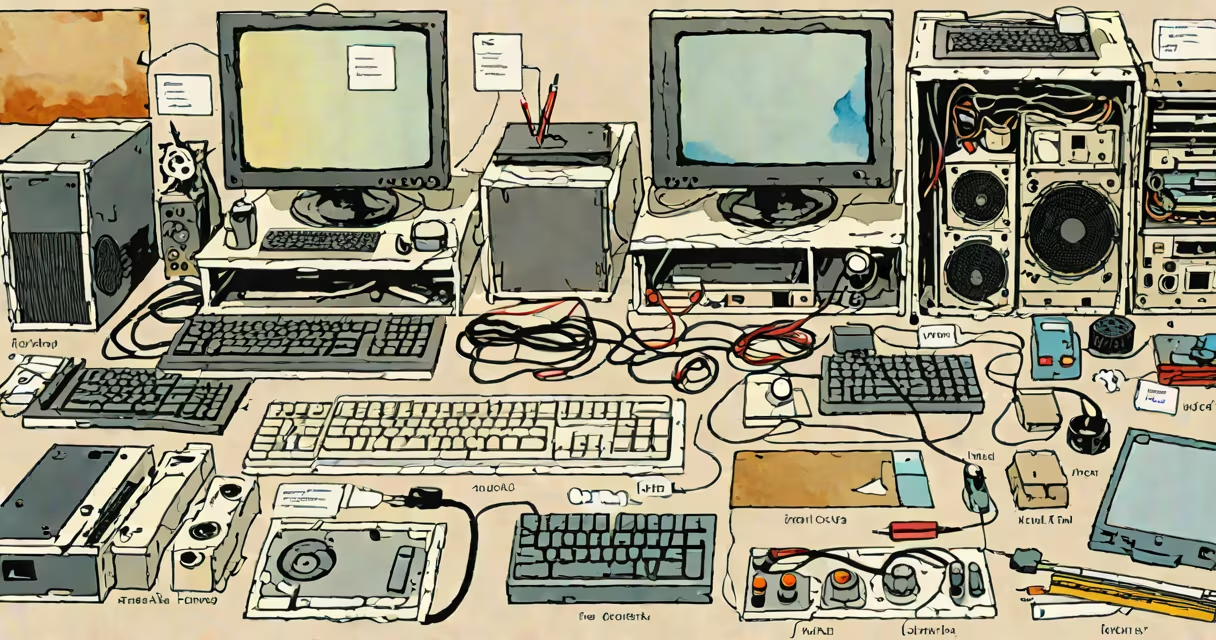
The components of a desktop are the physical parts that make up a personal computer, including the motherboard, central processing unit (CPU), memory (RAM), storage devices, graphics card (GPU), power supply unit (PSU), and chassis. These elements work together to process data, store information, display visuals, and provide electrical power.
Each component serves a distinct role in system operation. The motherboard acts as the central hub connecting all parts. The CPU performs calculations and executes instructions. RAM holds data temporarily during active tasks. Storage drives-such as SSDs or HDDs-retain operating systems, applications, and files long-term. The GPU renders images and video output. The PSU converts wall power into usable voltage for internal components. The case houses and protects all internal parts while managing airflow.
Modern desktops integrate these components into a single system designed for performance, reliability, and upgradeability. A desktop built for gaming may prioritize a high-end GPU and fast RAM, while a workstation focused on video editing requires ample RAM and large-capacity storage. The choice of components determines capabilities, efficiency, and longevity.
How Desktop Components Work Together
A desktop begins operation when power is applied through the PSU. The PSU sends regulated electricity to the motherboard, which activates the CPU. The CPU accesses firmware stored in ROM on the motherboard to initialize basic functions. Once the boot sequence starts, the CPU loads the operating system from the primary storage drive into RAM.
As software runs, the CPU processes instructions, retrieves data from RAM, and writes results to storage. When displaying graphics, the CPU sends rendering commands to the GPU, which processes pixel data and outputs signals to the monitor via HDMI or DisplayPort. All components communicate through standardized interfaces: PCIe slots for GPUs and expansion cards, SATA or M.2 connectors for storage, and DDR4/DDR5 DIMM slots for RAM.
For example, launching a game involves the CPU fetching game logic from the SSD, loading textures into RAM, and sending frame data to the GPU. The GPU renders each frame at 60 frames per second, then sends it to the monitor. If any component fails-like a failing PSU-the entire system may shut down unexpectedly.
Types and Variants of Key Components
Desktop components come in different forms based on function, speed, and compatibility. The table below outlines major categories and their common variants.
| Component | Common Types | Key Differences |
|---|---|---|
| Motherboard | ATX, Micro-ATX, Mini-ITX | Size affects case compatibility and slot count. ATX supports more expansion options. |
| CPU | Intel Core i5/i7/i9, AMD Ryzen 5/7/9 | Higher core counts improve multitasking. Clock speeds affect single-thread performance. |
| RAM | DDR4, DDR5 | DDR5 offers higher bandwidth and lower voltage but requires compatible motherboards. |
| Storage | SATA SSD, NVMe SSD, 3.5" HDD | NVMe SSDs are faster than SATA SSDs and quicker than HDDs. |
| GPU | NVIDIA RTX 40-series, AMD Radeon RX 7000-series | Higher VRAM (e.g., 16GB vs 8GB) improves performance in 4K gaming and rendering. |
Not all combinations are compatible. For instance, an AMD Ryzen 7000 series CPU requires a B650 or X670 motherboard with AM5 socket support. Using a DDR4 RAM module in a DDR5-only motherboard causes boot failure. Compatibility checks using tools like PCPartPicker prevent such mismatches.
Common Misconceptions and Clarifications
Many assume that more components automatically mean better performance. This is false. A high-end GPU paired with a low-tier CPU creates a bottleneck-where the slower part limits speed. For example, running a 4K video edit with a Ryzen 3 3200G CPU and an RTX 4090 GPU results in poor encoding times because the CPU cannot feed data fast enough.
Another misconception is that all cases are equal. Cases differ in airflow design, cable management space, and support for water cooling. A poorly ventilated case increases thermal throttling, reducing CPU and GPU performance by up to 15% under sustained load, according to tests by Tom's Hardware.
Some users confuse "components of a desktop" with software. The operating system, drivers, and applications are not physical parts. They run on the hardware but are not part of the desktop's physical structure. The components of a desktop refer strictly to tangible, replaceable hardware.
Real-World Example: Building a Gaming Desktop
In 2023, I assembled a desktop for competitive gaming using the following components:
- CPU: Intel Core i7-13700K (16 cores, 24 threads)
- GPU: NVIDIA GeForce RTX 4080 (16GB GDDR6X)
- RAM: 32GB DDR5-6000MHz (2x16GB)
- Storage: 1TB NVMe SSD (Samsung 980 Pro)
- PSU: 850W 80+ Gold (Corsair RM850x)
- Case: Fractal Design Meshify 2 (excellent airflow)
I installed the CPU into the LGA 1700 socket, secured the cooler, inserted RAM into the DIMM slots, mounted the SSD into the M.2 slot, connected the GPU to the PCIe x16 slot, and wired the PSU to all components. After powering on, the system booted into Windows within 30 seconds. Benchmarks showed 14,500 points in Cinebench R23 (multi-core), and games ran at 120 FPS in 1440p with ray tracing enabled.
This build demonstrates how proper component selection enables peak performance. Each part was chosen to avoid bottlenecks and ensure stable operation under load.
Related Concepts and Distinctions
The components of a desktop differ from those of a laptop. Laptops integrate most components into a compact form factor, often soldering the CPU and RAM to the motherboard. Upgrading is limited-users typically replace only the SSD or battery. Desktops allow full replacement and mixing of parts.
Understanding the components of a desktop clarifies how hardware choices impact performance, cost, and future upgrades. Knowing what each part does allows informed decisions when building or repairing a system.