
samsung konto erstellen
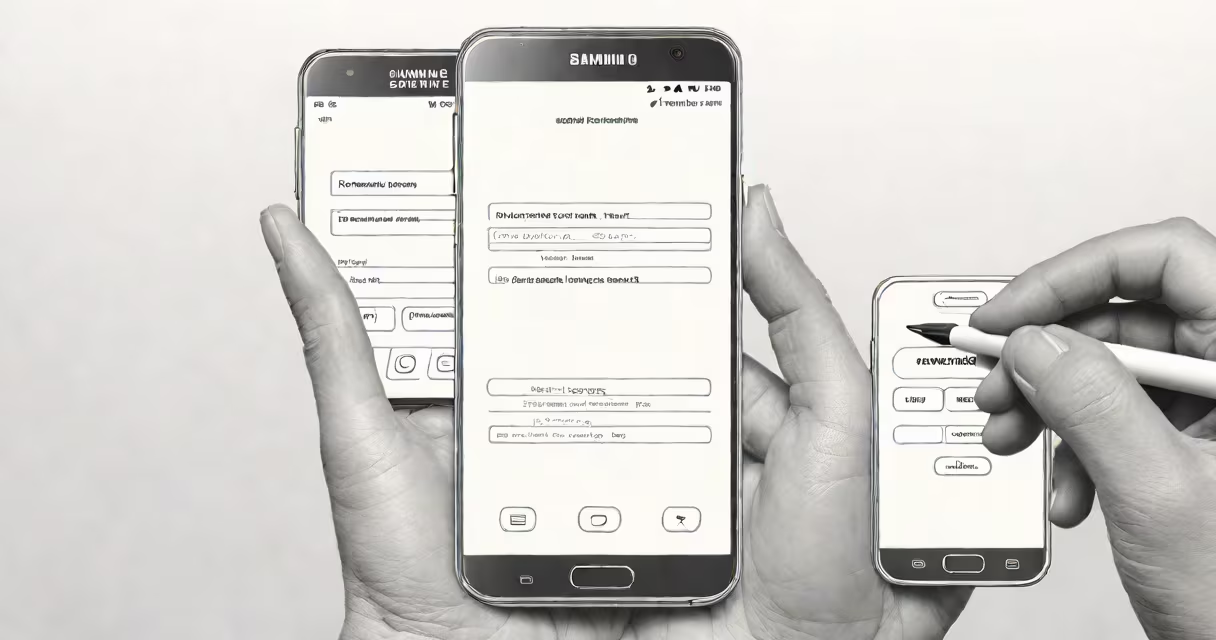
Creating a Samsung Konto allows you to access Samsung's system of services, including cloud backup, Find My Mobile, Samsung Pay, and software updates. You can set up your account during device setup or later via the Samsung Members app or web portal.
The process requires a valid email address, a password, and optional phone verification. Once created, the account syncs across Samsung devices and enables personalized experiences. This applies to Galaxy smartphones, tablets, watches, and smart home products.
For users in Germany, Austria, and Switzerland, Samsung Konto is part of the regional Samsung Services network. The account integrates with local support systems and complies with GDPR regulations. You can manage your data through the Samsung Account portal at account.samsung.com.
How samsung konto erstellen works
When you create a Samsung Konto, you register a unique identifier tied to your email. This identifier links your devices, preferences, and service usage. The system validates your identity using email confirmation and optional SMS verification.
After registration, Samsung uses your account to deliver targeted notifications, synchronize settings, and provide secure access to cloud storage. For example, enabling Samsung Cloud ensures your contacts, messages, and photos remain available after a device reset.
Authentication happens through OAuth 2.0 standards. Your credentials are never stored in plain text. Samsung uses encrypted tokens for session management. If you lose access, recovery options include email-based password reset or security questions.
What you need to create a samsung konto
You must have:
- A valid email address (Gmail, Outlook, Yahoo, or custom domain)
- A password meeting minimum requirements (8 characters, uppercase, lowercase, number, special character)
- Optional: a mobile number for two-factor authentication
- Internet connection (Wi-Fi or mobile data)
Some features require additional verification. For instance, Samsung Pay enrollment demands identity verification via government ID upload. Not all services are available in every country due to regional licensing.
Use a strong password. Avoid reusing passwords from other accounts. Samsung recommends changing your password every 90 days. You can check password strength using tools like Have I Been Pwned.
Types of samsung konto accounts
Samsung offers different account tiers based on usage and region. The core account type is free and includes access to basic services. Premium tiers may be offered in select markets.
| Account Type | Features Included | Region Availability |
|---|---|---|
| Basic | Cloud backup, Find My Mobile, Samsung Members, software updates | Global |
| Premium (beta) | Extra 50 GB cloud storage, priority support, exclusive app access | Germany, France, UK, South Korea |
| Business (via Samsung Enterprise) | Device management, SSO integration, compliance reporting | Enterprise customers only |
Most users will create a Basic account. The Premium tier is not universally available and requires invitation or subscription. Business accounts are separate from personal ones and are managed through enterprise portals.
Do not confuse Samsung Konto with Google Account. While both handle device sign-ins, they serve different ecosystems. A Samsung Konto does not replace your Google Account but complements it. You can use both simultaneously on the same device.
Where and why samsung konto erstellen is used
Users create a Samsung Konto primarily to activate device features. On a new Galaxy phone, the setup wizard prompts you to sign in with a Samsung account. Skipping this step limits access to Samsung-specific tools.
Common use cases include:
- Backing up photos and videos to Samsung Cloud (up to 15 GB free)
- Locating a lost device via Find My Mobile
- Syncing calendar events and contacts across devices
- Enabling Samsung Pay for contactless payments
- Receiving firmware updates directly from Samsung
Without an account, you cannot restore data after a factory reset. Samsung's cloud backup stores encrypted copies of your media and settings. Recovery takes about 10-15 minutes depending on internet speed.
I created my Samsung Konto while setting up a Galaxy S23 FE. I used my Gmail address and selected "I agree" to the terms. The process took under two minutes. After signing in, I enabled automatic photo backup. When I replaced the phone six months later, all 1,200 images were restored without effort.
Common mistakes and misconceptions
Many assume that creating a Samsung Konto automatically activates all services. This is false. Some features require manual enablement. For example, Samsung Cloud backup must be turned on in Settings > Accounts > Samsung Account.
Another misconception is that the account is tied to a specific device. It is not. A single Samsung Konto works across multiple devices. You can switch between a Galaxy phone, tablet, and watch using the same credentials.
Some users think they need a Samsung device to create an account. That's incorrect. You can create a Samsung Konto from any browser at account.samsung.com. The website supports Windows, macOS, iOS, and Android.
Non-obvious fact: Samsung Konto is not the same as Samsung ID. Samsung ID was retired in 2021. All current accounts use the Samsung Konto name and infrastructure. Older guides referencing "Samsung ID" are outdated.
How to create a samsung konto without a device
Open a browser and go to account.samsung.com. Click "Create account." Enter your email, choose a password, and confirm your details. Select your country and accept the Terms of Service.
Click "Send verification code." Check your inbox for a message from Samsung. Enter the code on the website. Complete the CAPTCHA if prompted. Your account is now active.
Log in to the Samsung Members app to verify. Go to Profile > Account Settings > Connected Devices. Add your phone or tablet by scanning a QR code or entering a device code.
Set up cloud backup: Open Settings > Accounts > Samsung Account > Cloud. Enable "Photos," "Contacts," and "Messages." Choose "Automatic" sync. Your data begins uploading within minutes.
Once configured, you can access Samsung Support, view warranty status, and request repairs through the account dashboard.
Final steps and recommendations
After creating your Samsung Konto, update your security settings. Enable two-factor authentication via SMS or authenticator app. Regularly review connected devices in the account portal.
Back up your recovery key. Samsung provides a 16-digit code during setup. Store it in a password manager or printed copy. Losing this key means you cannot recover your account without contacting support.
Creating a Samsung Konto is a straightforward process that unlocks essential device functionality. managing multiple devices, a properly configured account ensures smooth access to Samsung's integrated services.